

Website login, roles and your profile
Understand website identity, closed registration, missing menus and account settings.
Website identity is different from Client login
The website uses email/password or the sign-in providers enabled by the platform. User Client and Partner Client use their respective API keys. Do not enter your website password into a Client key field.
The website account owns its wallet, platform keys, private-channel memberships and partner permissions. Model traffic belongs to the owner of the local key used by the tool. Switching the Client management account does not change other keys' ownership.
Your first sign-in
- Open the platform sign-in page.
- Choose an enabled sign-in method.
- Register only if registration is open. If it is closed, ask the operator how to obtain access.
- Open Personal center and confirm the current account.
- Model users continue to API keys; suppliers continue to Partner console.
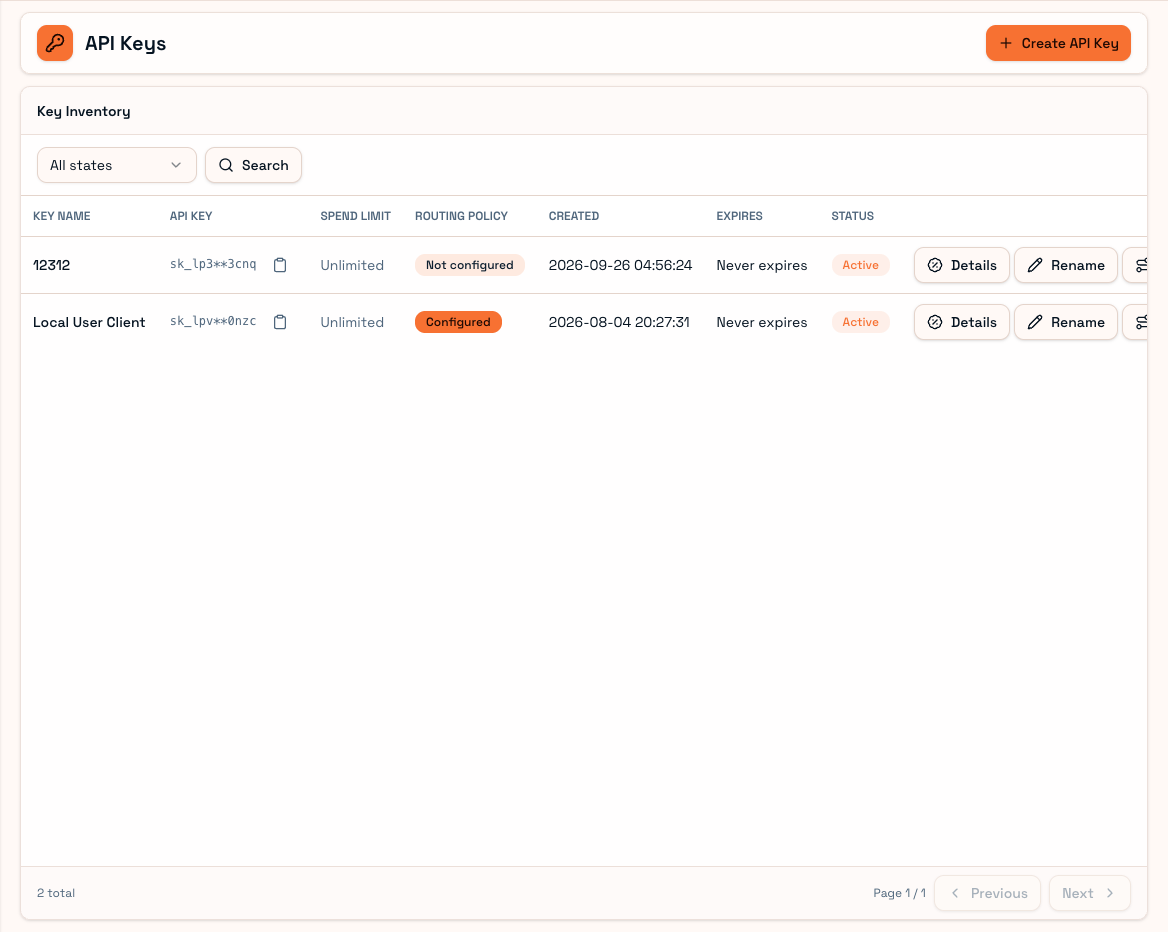
Account identities and credentials are hidden. Available menus depend on your permissions.
Missing menus and buttons
| Symptom | Check first |
|---|---|
| No Partner console | Whether supplier access was granted |
| Page visible, editing missing | The page's operation permissions |
| Administrative address says not found | Your permission and the address |
| Repeated sign-outs | Session expiry, disabled credentials or changed sign-in configuration |
Describe the missing menu and intended task to the administrator. Never send a password or a complete key with a support request.
Personal center
Depending on enabled features, you can change your password, manage third-party account bindings and review sessions. Signing out all devices can invalidate other website sessions. Platform and local keys are separate credentials; see Keys explained before replacing one.
You are ready when you can sign in and open the pages your role needs. User-only accounts can follow User quick start.