

Connect Codex: import or configure manually
Use the local Responses endpoint without overwriting an official supplier login.
Preparation
Keep User Client running, verify the local key and choose a model available to it. Install Codex separately.
If Partner Client supplies the same official Codex login, separate that official configuration from the consuming gateway configuration. Partner checks the provider identity; changing the official configuration to a custom provider can stop official-login synchronization.
Desktop import
- Find the Codex local key.
- Choose Import local Agent and select Codex.
- Inspect target file, model, local Base URL and field changes.
- Apply after review; the Client keeps a backup.
- Restart Codex or create a new session.
- Test a short prompt and a small temporary coding project.
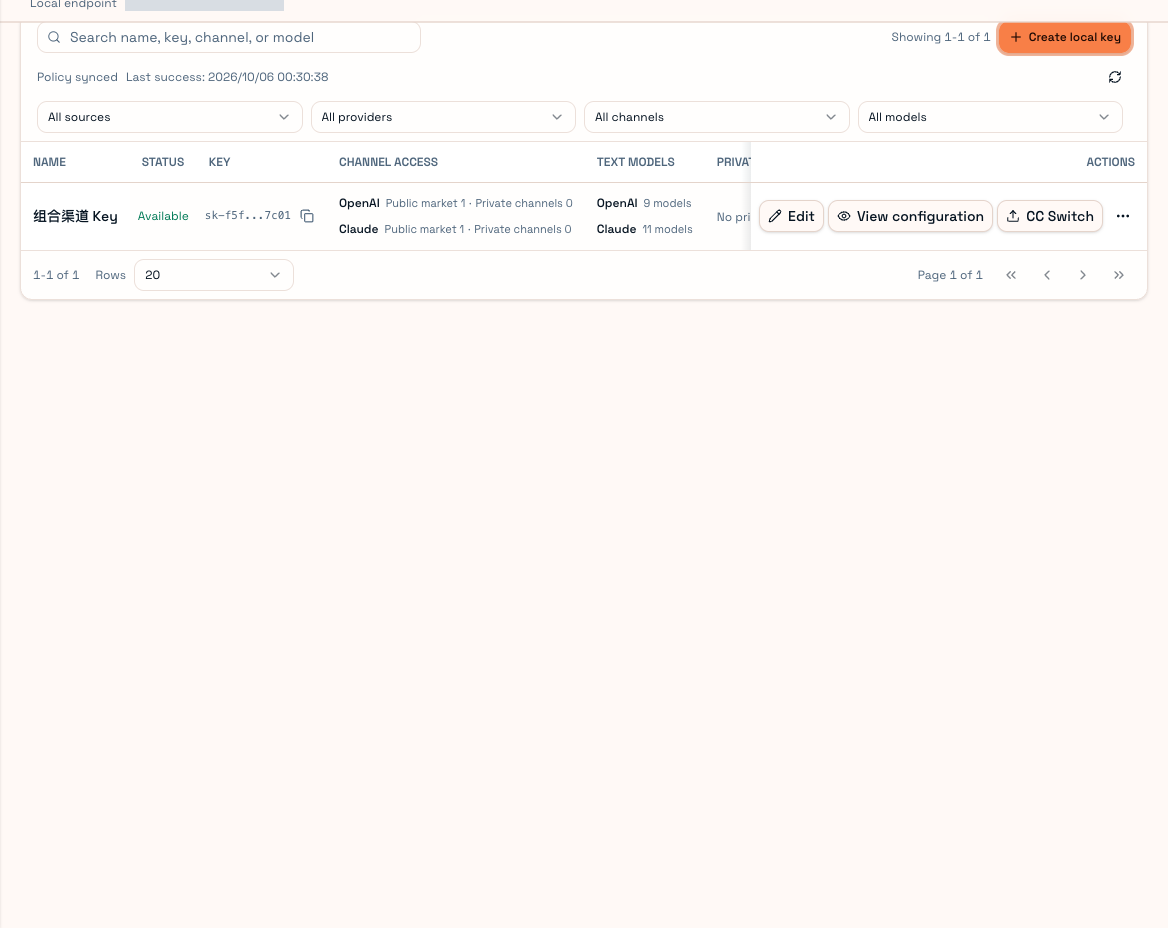
Browser management does not have every desktop file capability. Avoid concurrent edits to the same configuration file.
Manual configuration
Codex normally reads config.toml from ~/.codex or CODEX_HOME. Back it up and merge the necessary fields without deleting existing project, permission or tool settings.
Replace the placeholders and address:
model_provider = "primerouter"
model = "YOUR_AVAILABLE_MODEL"

[model_providers.primerouter]
name = "PrimeRouter"
base_url = "http://127.0.0.1:18000/v1"
wire_api = "responses"
experimental_bearer_token = "YOUR_LOCAL_KEY"
requires_openai_auth = false
The file contains a credential and must not enter Git. Configuration can vary by Codex version; prefer the current Client's generated output. Responses Base URL is not a complete Chat Completions endpoint.
Separate supplier and consumer environments
For example, Bash can set CODEX_HOME="$HOME/.codex-primerouter" for the consuming Codex and store its configuration there. Already-running official CLIs do not switch automatically. Use Windows' corresponding environment syntax when applicable, and keep Partner's detection directory aligned with the official CLI you want to supply.
Inspect source/model/channel in Usage records. Restore a Client backup or your own original file when reverting, then restart the tool. For context or execution problems, see Agent environment.