

Install a Client: Desktop or Web
Choose a product, operating system and architecture, then locate the local endpoint.
Choose the product first
Use User Client to call models and Partner Client to supply upstream accounts. Their keys and responsibilities differ.
| Edition | Best fit | What must keep running |
|---|---|---|
| Desktop | Everyday users and local Agent configuration | The desktop application |
| Web standalone | Always-on computers and servers | The service process; the browser may close |
| Docker Compose | Operators familiar with containers | The Client container and, for updates, its host service |
Start with Desktop unless you need an always-on service.
Download checklist
- Open Downloads.
- Select User or Partner. User downloads are public; Partner downloads require sign-in and supplier permission.
- Choose Desktop or Web, your OS and CPU architecture. Apple Silicon usually uses ARM64, Intel Macs x64/AMD64.
- Check the recommended version, size and checksum. If there is no recommended artifact, ask the operator; an empty catalog is not necessarily a login problem.
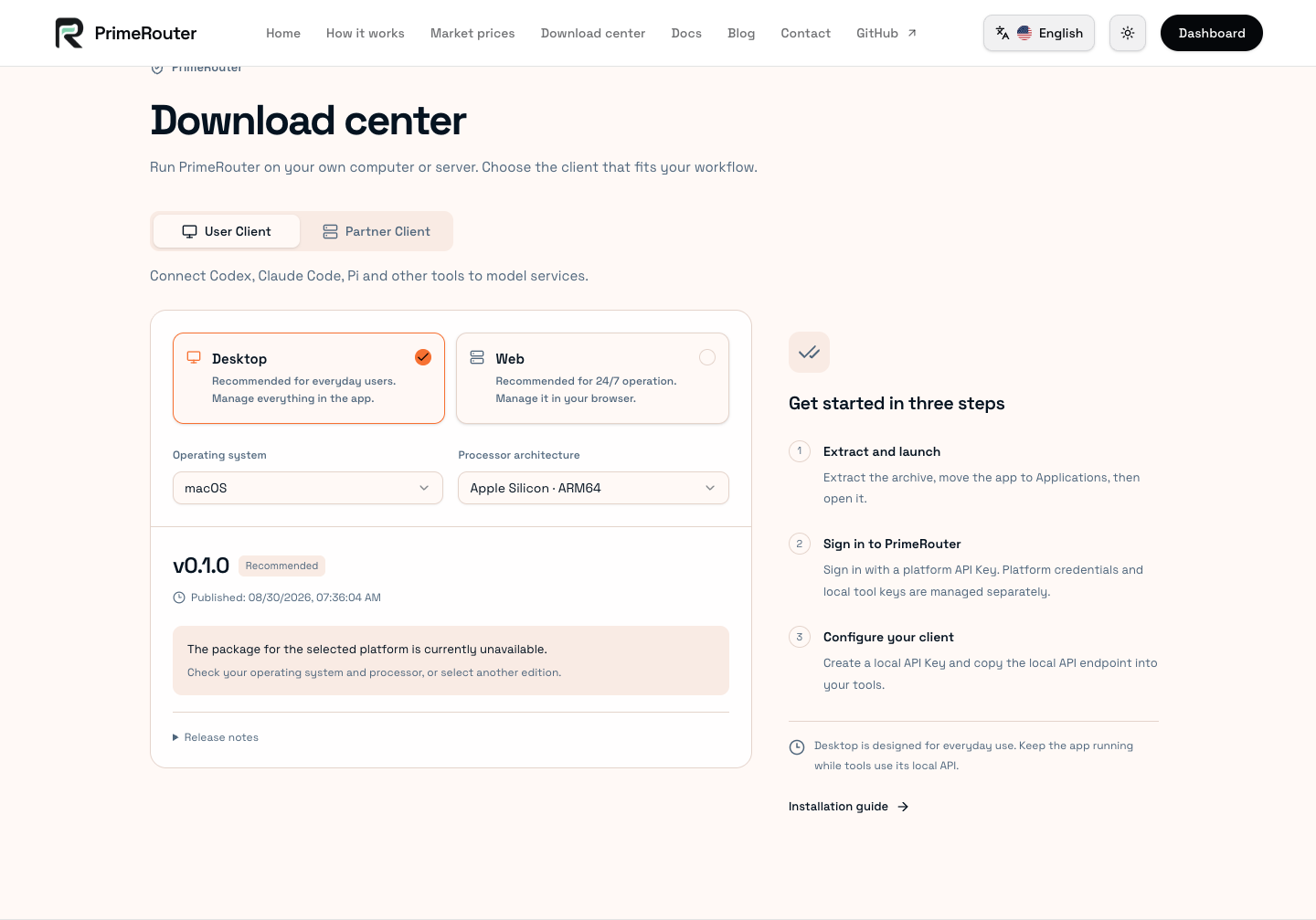
The screenshot has a recommended release, but its Desktop package for the selected OS and architecture is unavailable. Choose a supported run mode or ask the operator to publish that artifact. A recommended release does not imply packages exist for every platform.
Desktop startup
On macOS, extract the complete application bundle and open the User or Partner .app. On Windows, extract the complete package to a permanent directory and run the matching desktop .exe. On Linux, run the desktop executable with the runtime dependencies required by its release, including WebKitGTK 4.1.
Keep companion files intact. Startup maximizes the window. Closing the window can hide it in the tray/menu bar; quitting the application stops its local service. Sign in with a User API Key or Partner API Key as appropriate.
Web startup
Run the matching program from its extracted directory:
./primerouter-user-client serve
./primerouter-partner-client
Use the matching .exe on Windows. Default management addresses are http://127.0.0.1:18000 for User and http://127.0.0.1:18090 for Partner. Trust the actual startup address. If a port is occupied, first check whether a Client already runs.
Closing the browser does not stop the service; closing its terminal can. For long-running deployments, configure a service manager and handle update process ownership as described in the release instructions.
A working management login proves the local setup, not model availability. Continue with User quick start, Partner quick start, or Updates and storage.