

Supply a locally signed-in account
Synchronize an official Codex/Claude Code login and understand data, renewal and stopping.
Before you start
This workflow uses an account already signed in through official Codex or Claude Code. Prefer Partner Desktop. API-key login, another gateway provider, custom sources or incomplete installation identity may not qualify as an official synchronized login.
If you also consume PrimeRouter on this device, separate configurations as described for Codex or Claude Code.
Inspect and authorize
- Choose Supply local account.
- Select Codex or Claude Code.
- An explicit inspection/sync can request macOS Keychain authorization. Authorize only a trusted application; cancellation can be retried later.
- Confirm the detected account, installation identity and state.
- Read the synchronization consent and confirm import/automatic sync.
- Check the source label and sync state in the account list.
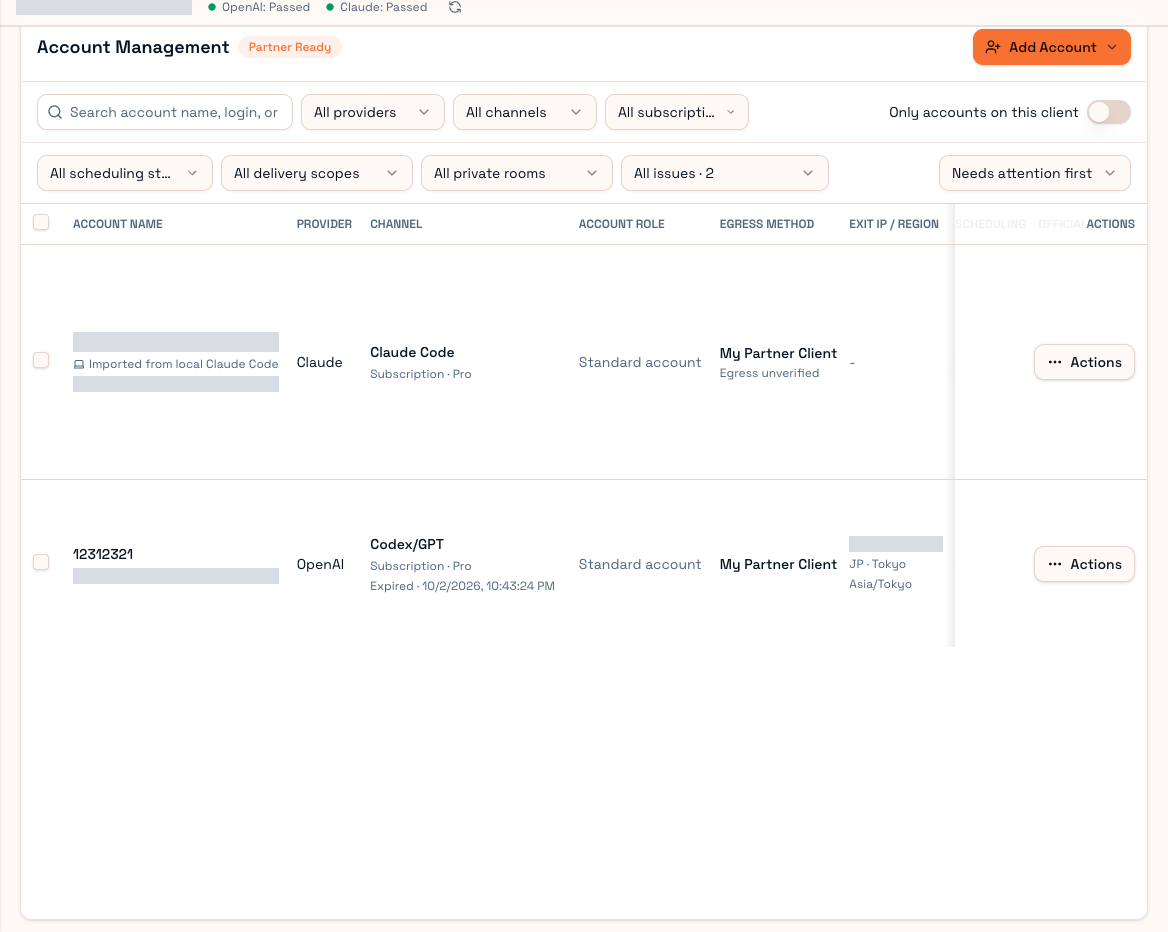
Account identities and exit addresses are hidden. This shows an existing binding, not authorization on your device.
Opening Partner does not imply an interactive Claude Keychain read every time. If authorization is needed, initiate synchronization when ready.
Data and renewal
Consent includes updated official access tokens, official installation ID, computer username, OS version and architecture. Local synchronization does not upload the refresh token or scan your project/Git content. Username can appear in model context or replies; path mapping is not complete identity anonymization.
The official CLI renews the login. Partner detects and synchronizes valid access credentials; it does not perform OAuth renewal for this local mode. Expiry without an official update pauses supply. Changing the official account requires new review/confirmation.
Egress and supply
Local mode uses that Client's exit or a configured proxy and does not silently move to Worker egress. Disconnects can stop supply.
Automatic synchronization and customer supply are separate. Scheduling plus a public/private supply scope is required and triggers the five-minute constraint. See Supply settings.
Before stopping sync, inspect the confirmation and supply state. To resume, check the official login and follow the interface. See Account health.