

Manage a private room: supply, members and prices
Create rooms, attach supply, admit members and explain key binding.
Prepare supply before creating a room
You need partner permissions, room quota and usable accounts. A room with a name but no schedulable supply can admit members without serving requests.
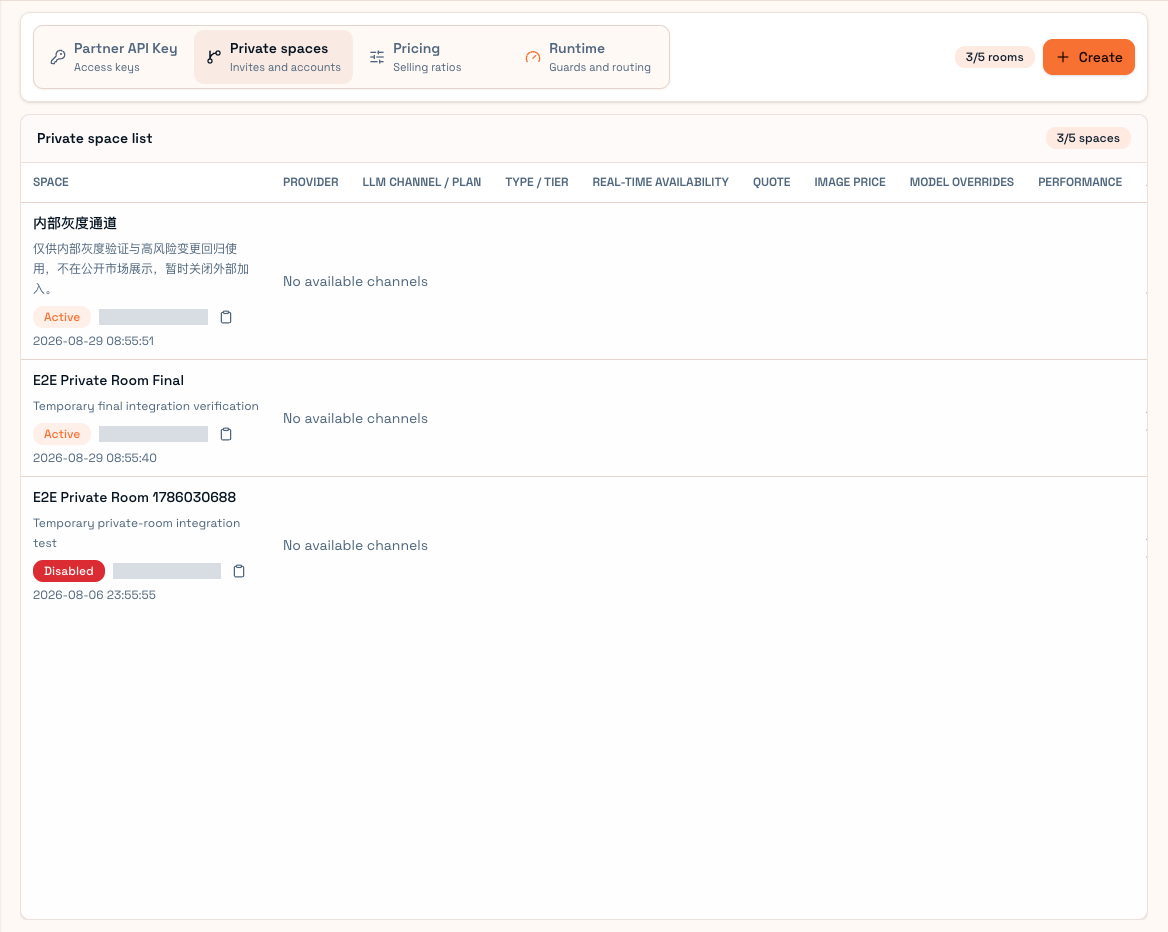
Manage your rooms in Partner console → Private spaces. Consumers join through Private connections.
Create a room
- Set a name and use-case description.
- Choose open/code access, approval, or closed membership.
- Set member limits and market visibility as needed.
- Bind accounts and verify scheduling.
- Configure room channel/plan/model prices.
- Share the code or approve applications, then explain User-key binding.
Not visible in the market?
The room needs an effective state, visibility and schedulable accounts. Visibility alone does not create supply. Featured channel/plan ordering controls the market display, not forced routing priority.
Members and prices
Review approval requests, and inspect member state and use information. Invitations, disabling and removal are access controls; sharing your Partner key is not a substitute.
Changes affect later requests, while historical bills/records remain. Rooms can have independent prices. Inspect each room's overrides rather than one account summary.
Account-binding operations can append or replace depending on the action. Bulk configuration can overwrite current bindings; an empty selection can clear scope. Read the confirmation.
Members must join, bind the intended User API Key, then allow the room in their local key. Share User private-channel instructions and test final route, price and settlement with controlled membership.